

Trainingpeaks set up Guide
Learn how to set up TrainingPeaks and how it will be used during your coaching.
TrainingPeaks Explained
TrainingPeaks is a powerful platform widely used by athletes to log and monitor their training. Coaches, including me, use it to prescribe workouts and keep a close eye on how athletes are progressing. The platform offers an enormous amount of data and insight—but that information is only useful if you understand what you’re looking at and know how to apply it to future workouts or training blocks. Below, I’ll break down the essentials of TrainingPeaks and highlight the key metrics worth paying attention to.
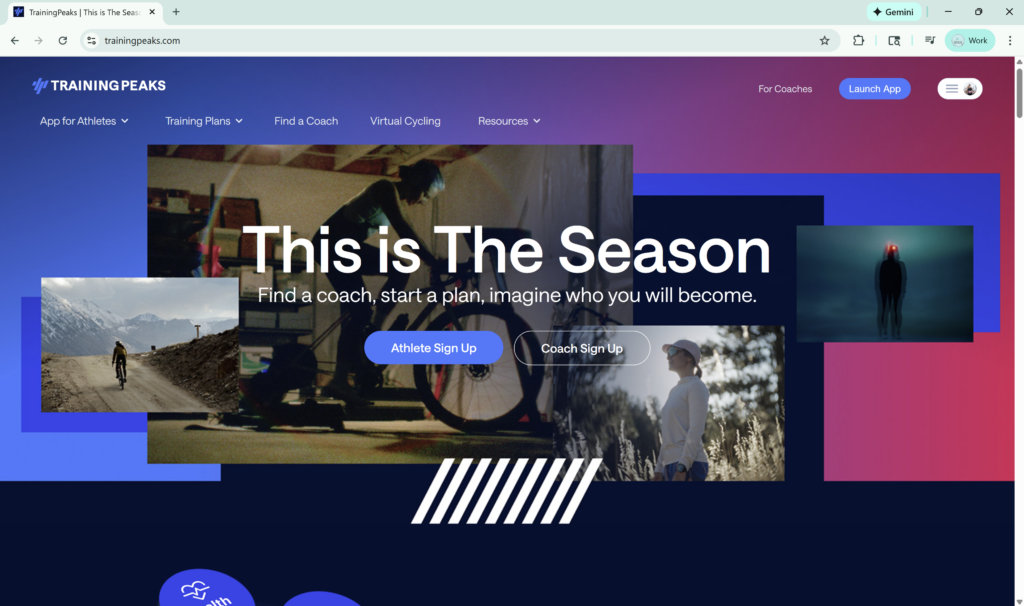
TrainingPeaks is an advanced tool designed for endurance athletes of all levels. It can be accessed on a phone, tablet, or computer, with the desktop version offering the most functionality and the mobile versions providing a simpler, more user-friendly experience. TrainingPeaks can be used in a very detailed way, with structured workouts and deep data analysis, or kept simple as an easy-to-follow training calendar.
TrainingPeaks offers both a free and a paid premium version. The free version allows athletes to record and track their training, though some advanced features are limited. In my opinion, athletes who use a GPS watch such as a Garmin or Apple Watch already have access to more than enough data, making the premium version unnecessary. I personally use the free version and find it works perfectly for my needs.
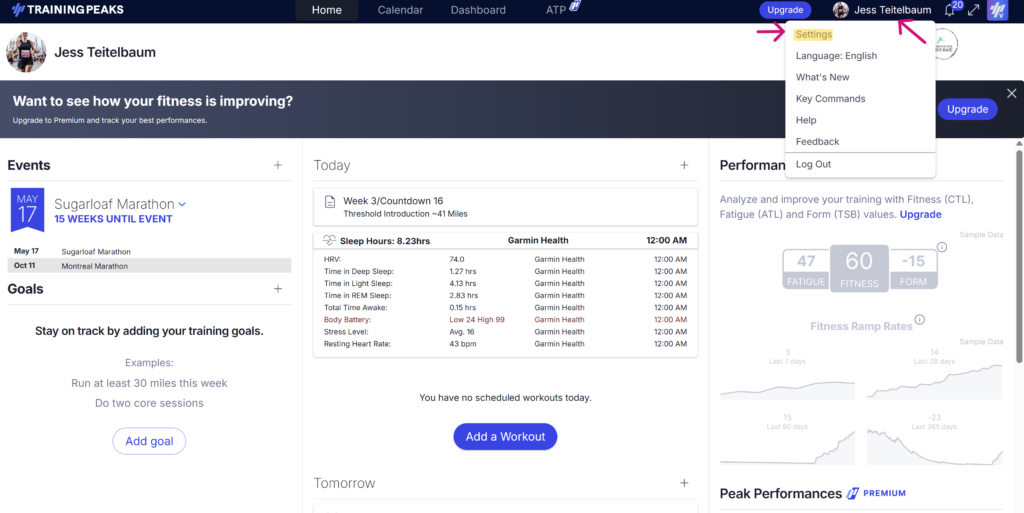
Setting Up TrainingPeaks
Once you’ve created your account, you’ll want to update your Account Settings (select “Settings” under your name in the upper right-hand corner). This is where you can confirm that your time zone, language, units, and notification preferences are set correctly. You’ll also notice a Coach section here—this will update with my name as soon as we’re linked.
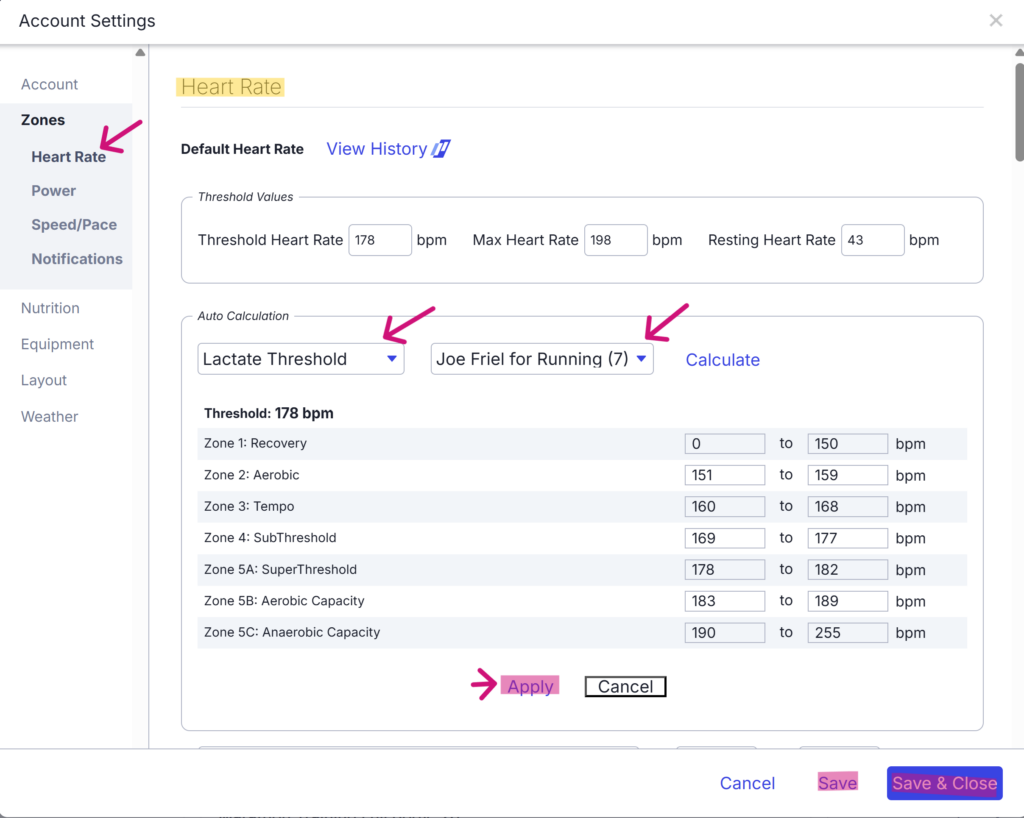
Updating Zones
After updating your personal settings, select Zones from the menu on the left. From here, you’ll want to update the Heart Rate section. At the top of the Auto Calculation box, select Lactate Threshold for Type and Joe Friel for Running for Method. Be sure to click Apply before saving your changes.
If you’ve completed at least one 60-minute run and know your Threshold Pace, you can also update this in the Speed/Pace section.
Syncing & Linking!
One of the biggest advantages of TrainingPeaks is how easily it syncs with compatible devices like GPS watches, treadmills, and indoor trainers. Workouts are delivered directly to your watch and sync back automatically, making tracking and analysis seamless.
More importantly, everything you need is right on your wrist. Targets are clearly laid out, so there’s no need to calculate paces, remember intervals, or guess effort—you can focus on running the workout as prescribed. A full list of compatible devices can be found on the TrainingPeaks website.

Linking with Your Coach (that’s me!)
Connecting your TrainingPeaks account takes just a minute and allows your workouts to be delivered directly to your training calendar and synced to your device.
Step 1: Look for your invitation
I’ll send you a link (by email or message). Open the link and log in to your TrainingPeaks account.
Step 2: Accept the connection
Once logged in, simply confirm the connection. That’s it— we are now linked and you can find my information under the coach section!
Step 3: Check your calendar
After connecting, your training calendar will populate with your workouts (or they will be there shortly). Any completed workouts will automatically sync back so I can review and comment on them.
Additional Screenshots & FAQs
Sample: Completed Week
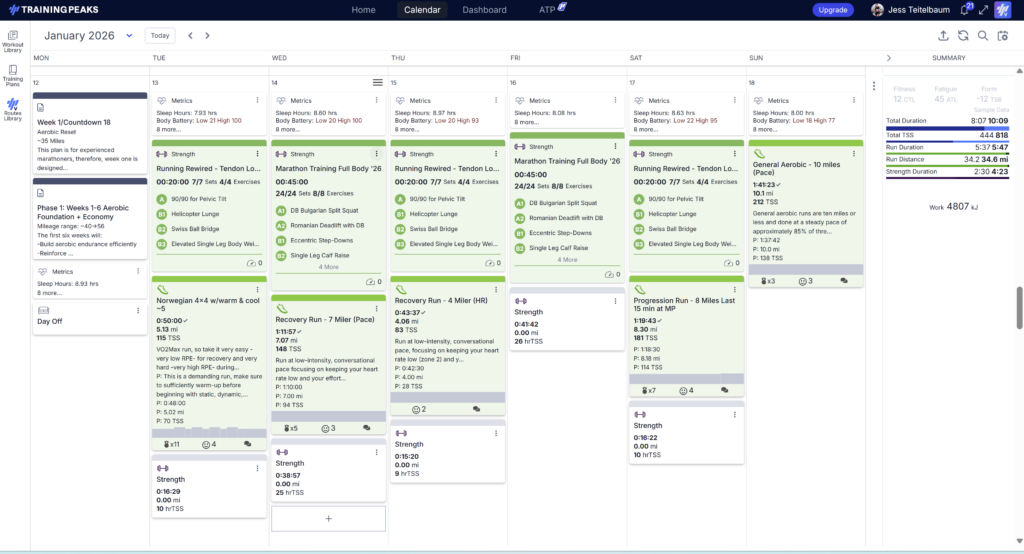
Sample: Upcoming Workouts
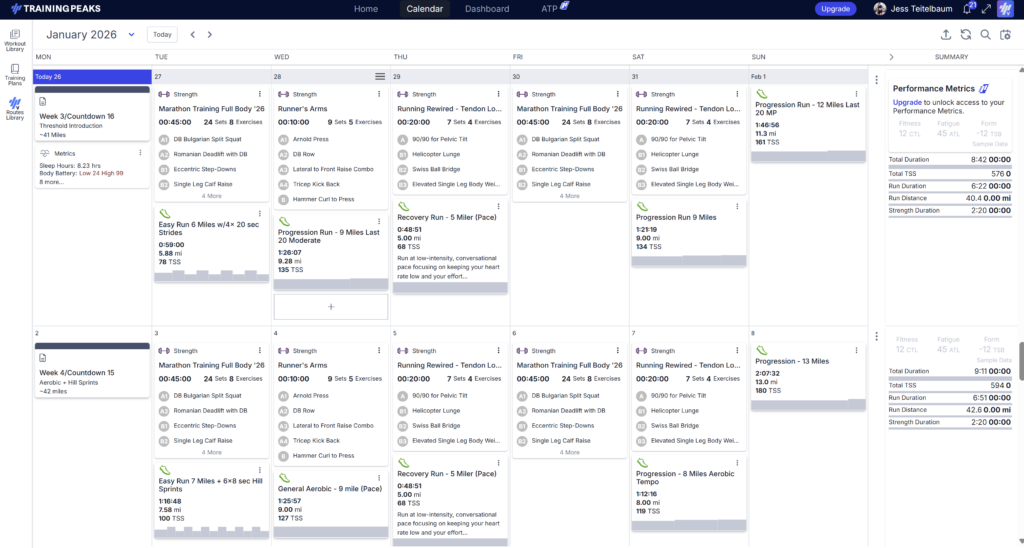
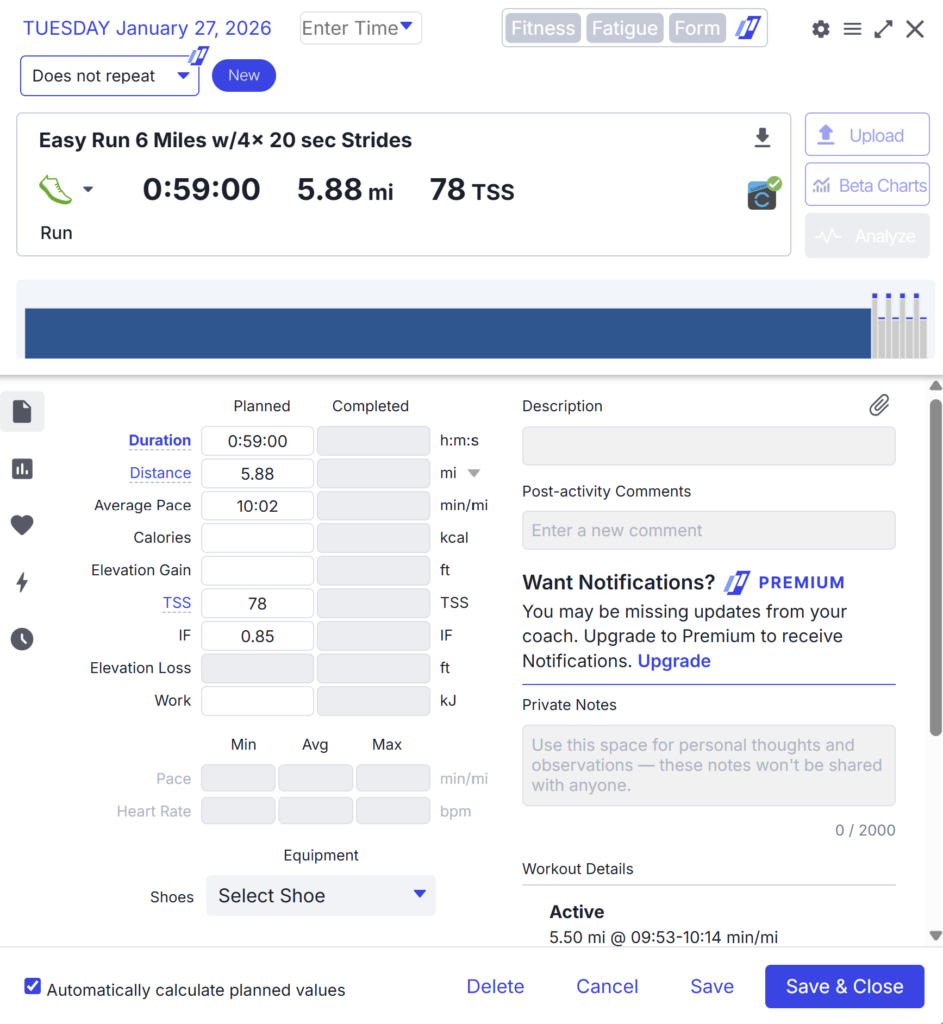
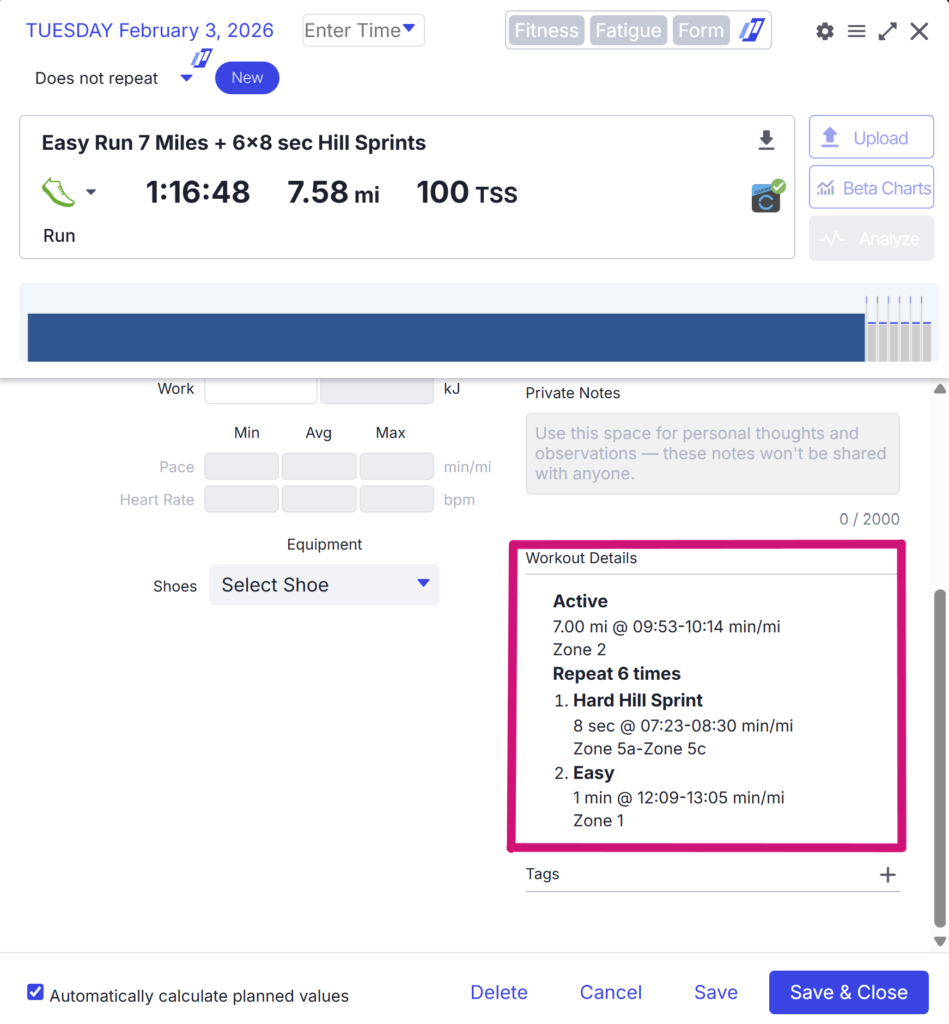
Below is a screenshot of a sample workout as it will appear on your computer. You can either use the bar at the top, or the Workout Details in the lower right to see exactly how to execute the planned run. If TrainingPeaks is synced to your wearable device, you will not have to remember this information; at the start of your run (either by selecting “Run” or “Treadmill” on your device, and then “Do Workout,”) your watch will automatically guide you through each step of the workout, and will display whether you are within the ranges of the run specifications (pace, heart rate, time, etc.)
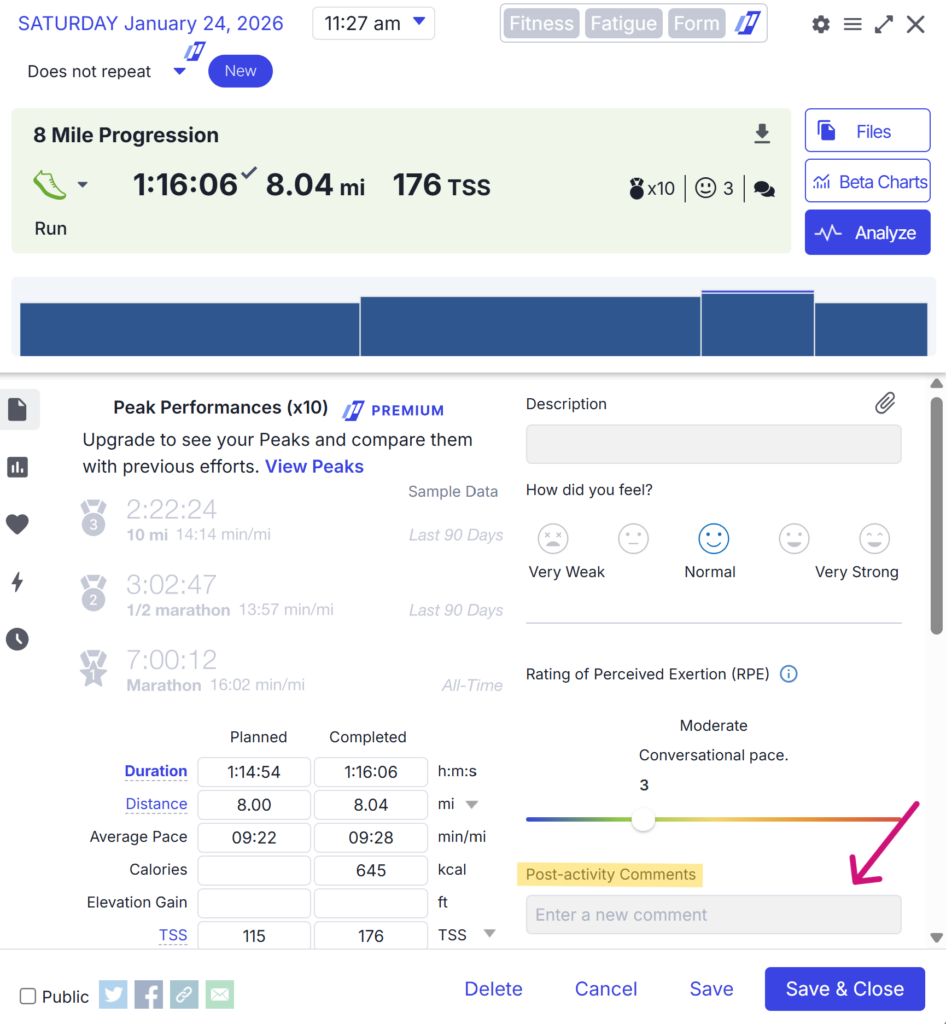
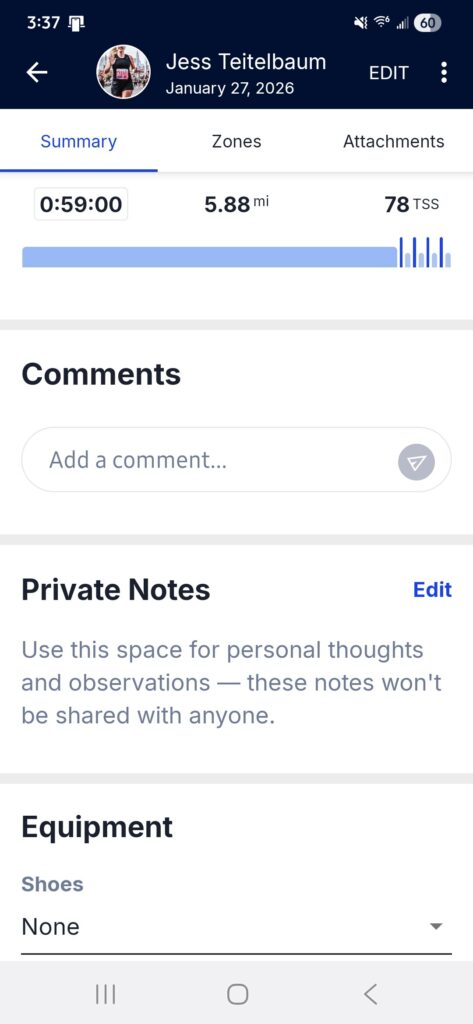
Once you’ve completed your workout, you have the option to (and I highly recommend you do) provide feedback as to how you felt and how difficult you thought that workout was. There is also a place to leave comments, which is where you can find my feedback and motivation after reviewing your workouts.
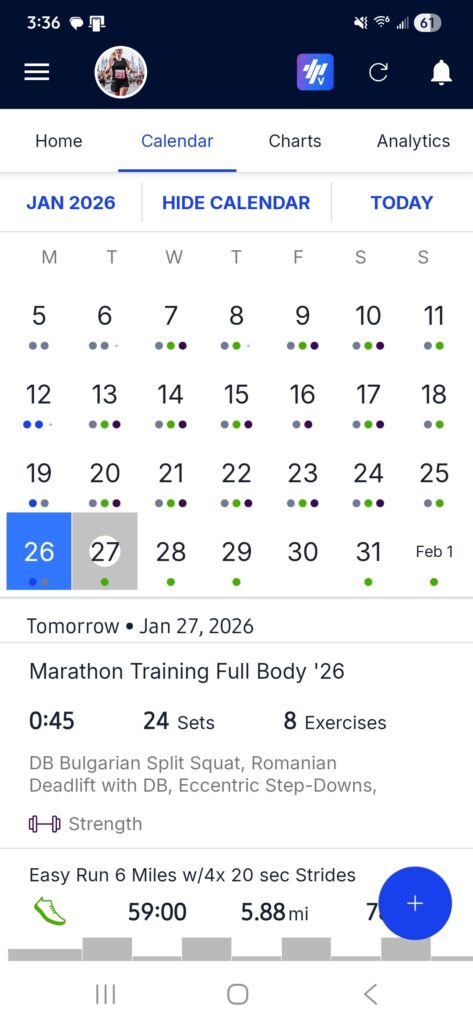
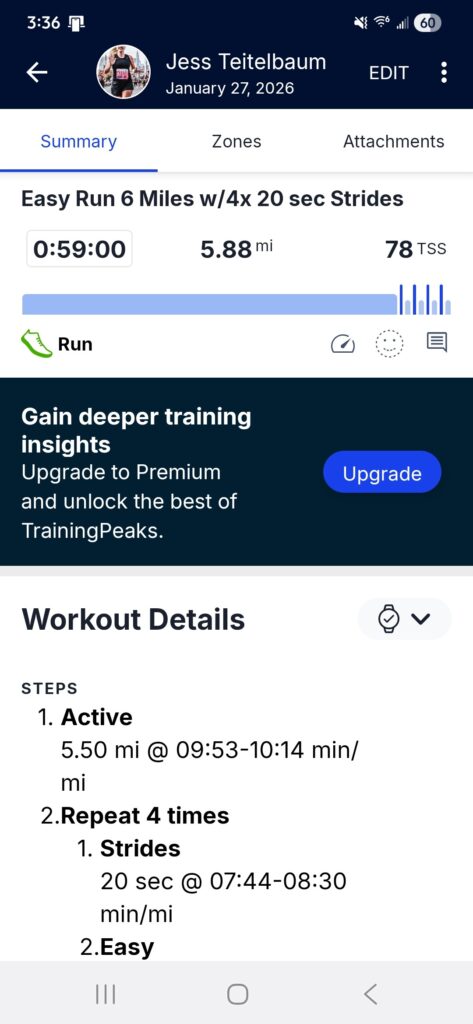
The mobile version of TrainingPeaks is simplified in the best way possible! In fact, unless you are creating manual workouts (why would you, you have me!), you may not need the computer version once you get going.
Mobile: Calendar View
Mobile: Workout
Mobile: Communication Section
One of the most useful metrics in TrainingPeaks is TSS, or Training Stress Score. TSS provides a snapshot of how demanding a workout is relative to your current fitness. It helps quantify how hard a session actually was, which makes it valuable both for planning and for reflection after the fact. Looking ahead, TSS can guide smart scheduling—such as placing easier sessions on days when you’re already feeling fatigued. Looking back, it offers insight into how much stress a workout placed on your system. Over time, this data helps indicate whether training is trending toward under- or over-training. As a general example, a one-hour effort at very high intensity typically results in a TSS close to 100, signaling a demanding session that will require adequate recovery.
{Available for Coaches and Premium accounts} The overall goal in TrainingPeaks is to become fitter, and within the platform, fitness is represented by Chronic Training Load (CTL). CTL is calculated as a rolling average of your daily Training Stress Score over the previous 42 days, which gives us a clear picture of your long-term fitness trend. When CTL is steadily increasing, it generally indicates that fitness is improving—exactly what we want when building toward a race or key goal. That said, how CTL rises matters. Gradual, controlled increases are the safest and most effective way to build fitness. Trying to accelerate the process with extreme training loads (such as 1000+ TSS weeks) often leads to excessive fatigue, illness, or injury, and ultimately results in missed training time rather than faster progress.
{Available for Coaches and Premium accounts} Acute Training Load (ATL) reflects short-term training stress and is used in TrainingPeaks as a measure of fatigue. Unlike long-term fitness trends, ATL looks at what you’ve done recently, specifically the cumulative training stress from the past seven days. Higher ATL values typically coincide with heavy training periods, demanding weeks, or race efforts, and often align with feelings of fatigue, low energy, or general heaviness. Tracking ATL helps put those sensations into context and allows us to manage the balance between hard work and recovery. When used correctly, this metric helps guide smart training decisions that support performance while reducing the risk of excessive fatigue, illness, or injury.
{Available for Coaches and Premium accounts} Training Stress Balance (TSB) is the final piece of data and is often referred to as your “form” in TrainingPeaks. TSB is calculated using both your long-term fitness (CTL) and your short-term fatigue (ATL), and it provides insight into how fresh—or how loaded—you are at a given moment. A positive TSB typically reflects a well-rested state and is often seen around race day or during recovery periods. A negative TSB indicates accumulated training stress, which is not inherently bad. In fact, during a focused training cycle—especially endurance race training—it’s normal, and expected, to spend the majority of time in the negatives. This simply reflects purposeful fatigue from consistent training. The key is context: extremely negative values sustained without recovery can signal the need to pull back, while moderately negative values during a build often mean training is right on track.